
2,847 creators joined this month
Grow your 𝕏 audience 3x faster
AI writing, viral tweet library, smart scheduling, and lead finder. All in one tool.
Try Tweet Hunter for free7 day free trial - Money back guarantee

Twitter's advanced search is possibly one of the platform’s best-hidden features. But that doesn’t make it less valuable.
Advanced search allows you to make your search very specific, filtering by different factors like words, people, dates, etc.
It’s a convenient feature if you know how to use it right. At the same time, it’s not one of Twitter's most intuitive features.
But don’t worry, in today’s article, we’ll help you make the most of it. Let’s dive in!
✅ Boost Your Twitter Presence with Tweet Hunter!
Why would anyone want to use it if it's that hidden and complex?
There are a few reasons:
Some say that if you dominate advanced search, there’s nothing you can’t find on Twitter.
To start using Twitter’s advanced search on desktop, do the following:
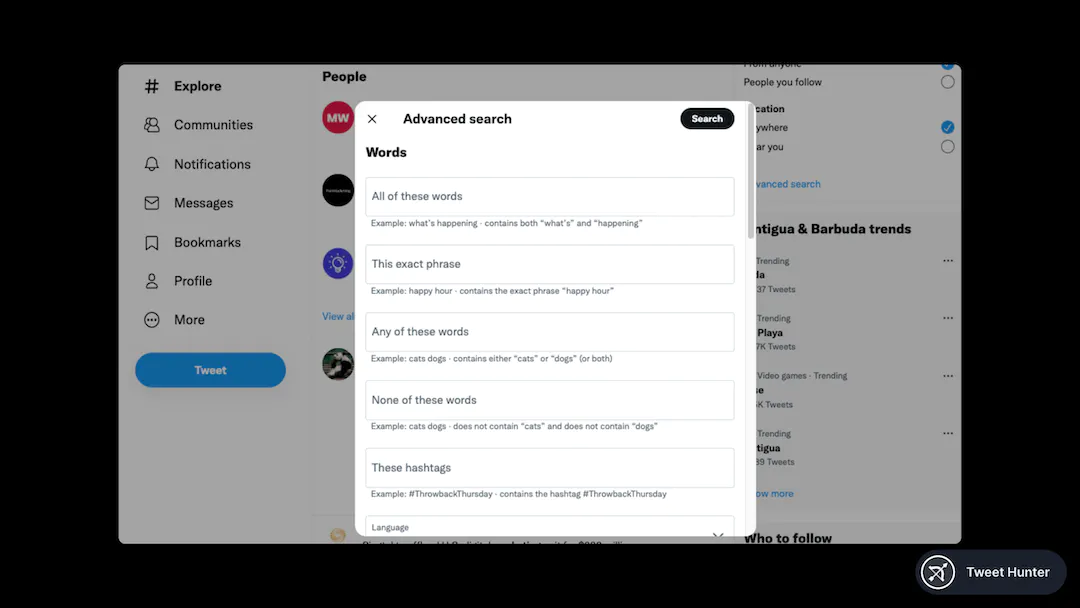
Unfortunately, this feature is unavailable on Android and iOS. That means that no, you can not use Twitter’s Advanced Search on mobile unless you do it via browser.
Now that we’ve found the advanced search let’s try it!
Once the advanced search menu is open, it's as simple as filling in a few or each of the different categories to tailor your search.
You can filter by:
To make even more from the search, you can combine different fields.
For example, let’s say you want to find what people in New York were saying about the New York Knicks in the NBA’s Christmas game. You would then search for tweets containing the word “Knicks” and add December 25 on the date search filed.
Combining different fields is where Twitter's advanced search shines.
By now, you probably realize how useful Twitter’s advanced search is. But let’s be honest, it’s not easy to use.
That’s why we have “Search operators”: search operators are a series of formulas (called operators by Twitter) that you can paste directly onto the search bar to make the advanced search easier.
These formulas do the same as the advanced search menu. They are just simpler and faster to use.
Let’s take a look:
If we want to find old tweets from someone, you just need to add the search operator “from:” and then that person’s username.
An example, searching for tweets from Naval 👇
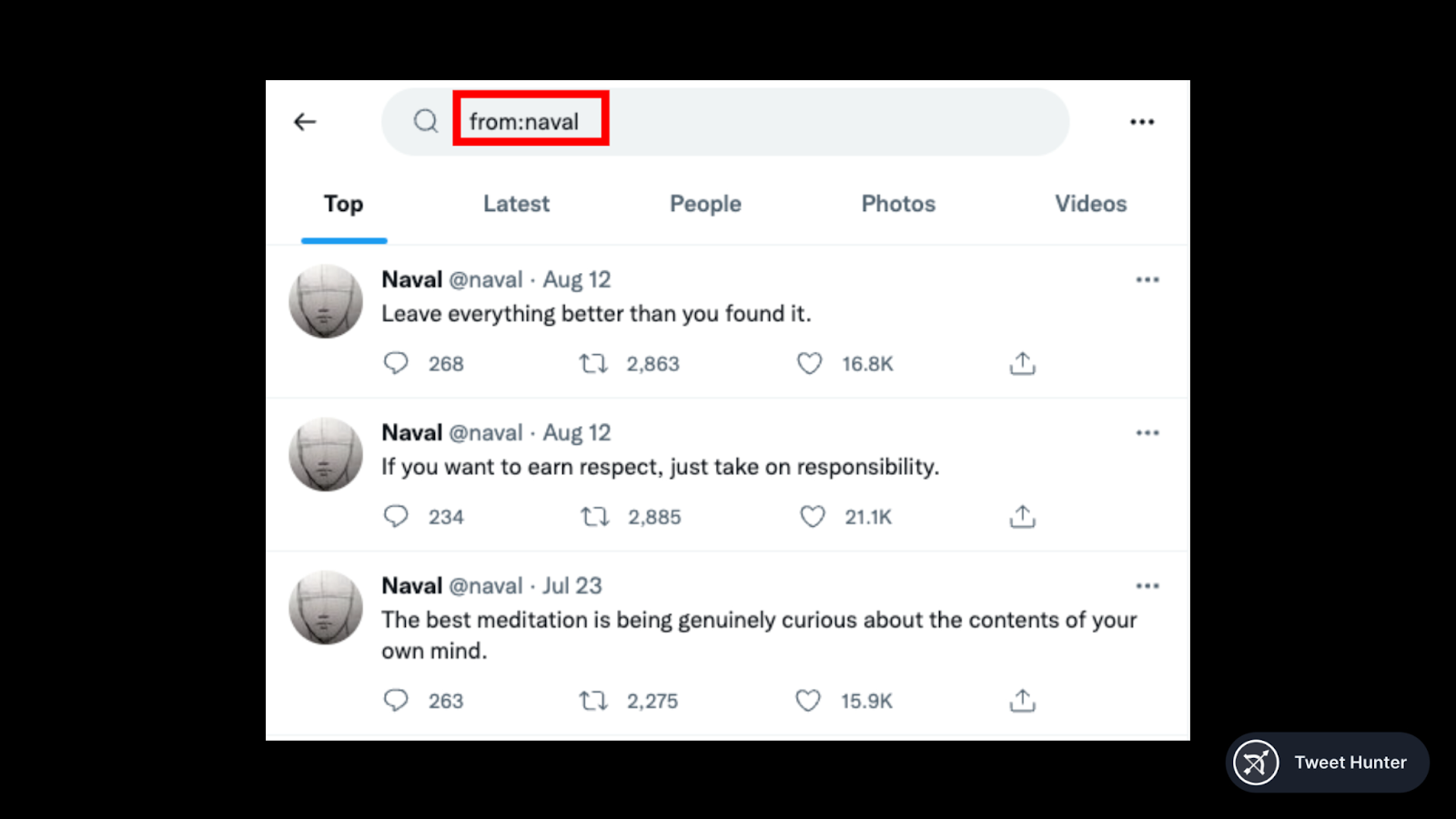
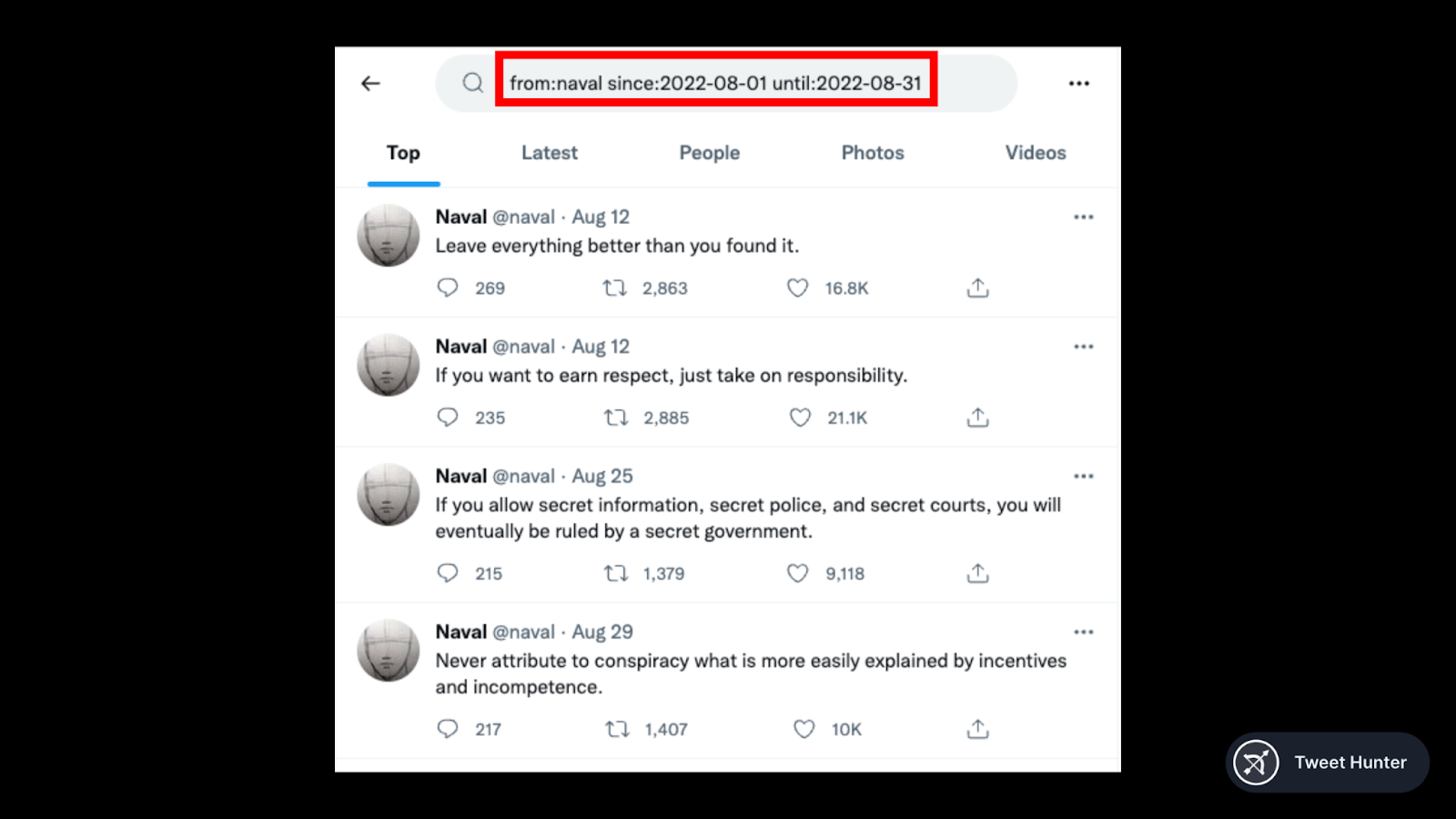
Now, let’s say we want to know what Naval was tweeting during this past month of August. What we would need to do is add these two search operators:
Now we can see tweets only posted in August
Another use case is searching for tweets with a certain number of retweets, useful if you want to find the most retweeted posts from someone. This is especially useful to see someone’s best ideas, as those tend to be those with the most RTs.
The operator is min_retweets:NN. You just need to substitute NN by a number, and Twitter will return all tweets with a higher RT count.
An example:

Filtering per number of likes works the same as the retweets. And it’s useful to find the most liked tweets from someone. The operator is min_faves:NN.
You need to substitute NN by a number, and Twitter will return all tweets with a higher like count. Example:

As mentioned above, Twitter's advanced search is more powerful when you combine several of these operators.
To make this easier for you, here’s a table with the main ones:
| OPERATOR | EXAMPLE | HOW DOES IT WORK |
|---|---|---|
| from: | from:JustinBieber | Returns all tweets ever posted by @JustinBieber |
| since: | since:yyyy-mm-dd | Tweets since a specific date |
| until: | until:yyyy-mm-dd | Tweets until a certain date |
| lang: | lang:en | Filtering tweets by language. In this case, English |
| min_faves: | min_faves:50 | Filter tweets by the number of likes |
| min_retweets: | min_retweets:50 | Filter tweets by the number of retweets |
| filter: | filter:imagesfilter:video | Only returns content that HAS an image or video |
| -filter: | -filter:images-filter:video | Only returns content that DOESN’T have an image or video |
| url: | url:amazon | Returns tweets containing an url with the a concrete word in it |
| “phrase” | “tax reduction” | Returns tweets with the exact phrase between the “ |
Even after everything we’ve covered in this article, it may still seem difficult for some users to use Twitter’s advanced search.
That’s why at Tweet Hunter we aimed to make search even simpler.
When you log into Tweet Hunter and go to the “Search” tab on the left column, this will show up:

Once you're there, you need to write a topic you'd like to search tweets about, and the search engine will get them for you.
You can also look for tweets from specific users on Twitter. You just need their username:
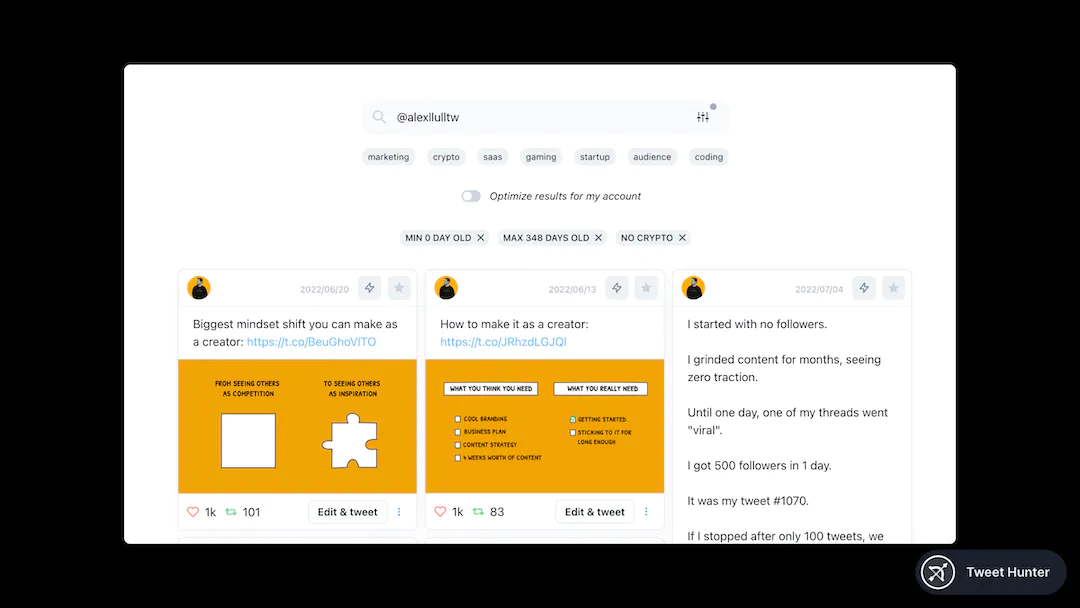
If you want to add like, RT, or even date filters, we’ve made it easier by adding a simple bar toggle you’ll find on the right side of the search bar.

This makes Tweet Hunter’s search feature the same as Twitter’s, just that it’s easier to use and navigate.
Dominating Twitter’s advanced search is like unlocking a new level. You can use it to find inspiration or do some research.
The possibilities are endless! But that’s not everything Twitter has to offer. Twitter has other features that will be useful for your Twitter journey, like Twitter Analytics.
✅ And if you are a Tweet Hunter user, you get to add automation to your Twitter arsenal.
That should be more than enough to kickstart your growth!
AI writing, viral tweet library, smart scheduling, and lead finder. All in one tool.
Try Tweet Hunter for free